Selecting Models
The easiest way to select a model is to click on it with the mouse or pinch action. Selecting a model attaches the appropriate tool to it for editing.
Multiple models can be selected by modified-clicking them. Modified-clicking an unselected model adds it as a selection, and modified-clicking a selected model deselects it.
The Tree Panel can also be used to view and change the current selection.
Primary and Secondary Selections
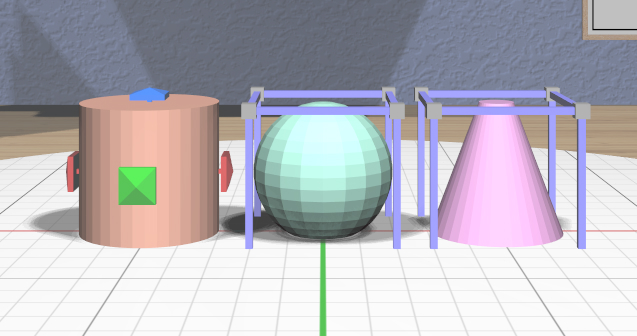
When more than one model is selected, the first selected model is known as the primary selection and all other selected models are the secondary selections. The current editing tool is attached to only the primary selection. All secondary selections are indicated with a noninteractive blue wireframe box as shown here. Some tools and actions treat the primary and secondary selections differently.
Parent and Child Selection
A model that is created from other models adds the original models as children and hides them. This is true for both converted models and combined models.
You can make the child models visible by selecting them, using either the Tree Panel or by using the following keyboard shortcuts:
Ctrl-Down (the Select FirstChild action) selects the first child of the selected parent model.
Ctrl-Left (the Select Previous Sibling action) selects the previous sibling of the selected child or top-level model, wrapping around as necessary.
Ctrl-Right (the Select Next Sibling action) selects the next sibling of the selected child or top-level model, wrapping around as necessary.
Ctrl-Up (the Select Parent action) selects the parent of a child model.
In addition, the Ctrl-A shortcut (the Select All action) selects all top-level models and the Shift-Ctrl-A shortcut (the Select None action) deselects all selected models. You can also deselect everything by clicking on a wall or anywhere else in the work area that is not interactive. Keep in mind the stage is interactive, so clicking on it does not change the selection.